

A 1TB drive can work well for PC gaming if you rotate games instead of keeping a large collection installed at once. Usable capacity is the space the operating system reports as available on a drive after formatting and system use. Your choice depends on how many large games you want installed alongside apps and personal files. A manageable rotation makes 1TB a workable starting point, while a larger library is easier to keep ready with 2TB. This guide helps you weigh that tradeoff against your budget and everyday needs, so you can choose a capacity that suits your experience without paying for room you will not use.
Key Takeaways
- 1TB suits a rotating collection of installed games.
- 2TB gives you more room for a broader library.
- Installed games, apps, and personal files all use capacity.
- SSD storage is a practical choice for a gaming PC.
- Check your motherboard before choosing an internal drive.
Treat 1TB as a practical starting point, not a promise that you will never need to manage space.
How Much Space Does Windows and the Rest of Your PC Use?
A 1TB drive typically shows about 931GB in Windows before the OS, apps, and personal files take their share. The difference comes from how drive makers and Windows count storage: manufacturers use decimal units, while Windows reports capacity using binary units. That means the number on the box is not the usable capacity displayed on your system.
Windows 11 has a 64GB available-space requirement for installation or upgrade, but that is a minimum, not a forecast of a full installation. Updates and particular features can need more storage over time. A Windows 11 virtual machine also requires at least 64GB of disk space.
Leave room for updates and everyday files instead of treating every displayed gigabyte as game space.
Formatting, the OS, and system files reduce the space left on the drive. Apps take their share, too, along with saved games, downloads, photos, videos, and other personal files. Those everyday items may grow gradually, so the storage available for games can change after setup.
A 1TB drive still leaves room for games, but it offers less room than its label suggests. The amount left depends on what you install and keep, so check the storage view on your PC rather than planning around the full 1TB figure.
Keep some capacity free for system updates, new apps, and the files you use every day. That makes it easier to avoid a nearly full drive when an update or download arrives.
Is 1TB Storage Wnough Fot PC Gaming?
For a gamer who keeps several large titles installed, 2TB offers more breathing room, while 1TB works best with a regular rotation. One high-end AAA game can exceed 100GB, so even a modest number of modern games can use a sizeable share of available storage. The best capacity depends on how often you uninstall finished games.
2TB is the more comfortable choice for a broad library, while 1TB suits gamers willing to uninstall titles. A 500GB drive can work for a tight budget, but leaves less flexibility for games, apps, and files. A PC build costing more than $500 has 1TB as a practical minimum, with 500GB the bare minimum to consider.
| Capacity | Best fit | Main tradeoff |
|---|---|---|
| 500GB | Small rotation and tight budget | Limited room for large games |
| 1TB | Regularly rotated game collection | May require uninstalling titles |
| 2TB | Broad library kept ready to play | Higher upfront storage cost |
| 4TB or more | Collectors and creators with large files | More capacity than many gamers need |
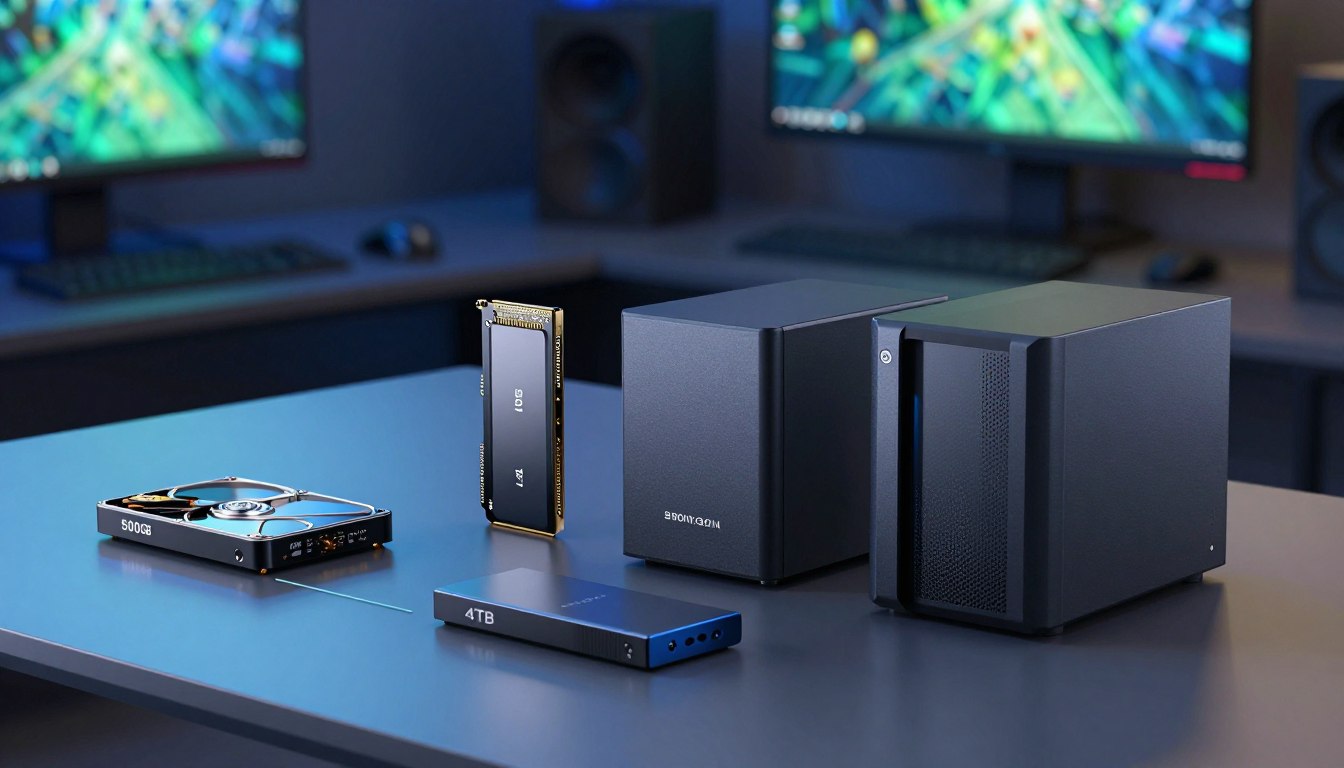
For many players in 2026, 2TB drives are the storage sweet spot. A 1TB or 2TB PCIe 4.0 NVMe SSD is also a common fit for most users building a gaming PC. The added capacity can make keeping games installed more convenient, though your own library matters more than a general target.
Two terabytes of storage is enough for gaming for most players. Collectors and creators may need more for a larger game library, recordings, or other content they keep on the PC.
Choose 1TB if you are comfortable uninstalling finished games, and step up to 2TB if keeping a wider library ready matters more.
What Determines Whether 1TB Fits Your Game Library?
The number of games you keep installed at the same time matters more than the size of your complete game library. Add up the install size of the titles you want ready to play, then consider what else shares the drive. That combined total gives you a more useful picture of your storage needs than a game count alone.
Plan around the games you want installed together, not every game you own. A short rotation of large titles may fit more easily than a longer list of smaller ones. Your available room also changes when a game adds an update, optional content, or a separate launcher.
How many large games stay installed
Look at the actual install sizes in your game library and total the titles you regularly return to. If you move between a few large games, 1TB may suit you. Keeping a long list installed at once can make the same drive feel cramped, especially when you want room for new releases.
Space for apps, recordings, and other files
Apps, mods, DLC, game captures, and personal files all use capacity beyond a game’s base install. A 512GB drive is much tighter: it can show about 476GB after formatting. SSD headroom also matters; keeping roughly 10-20% free is a useful rule of thumb, not a promise of a particular performance gain.
Use this checklist to estimate your own room:
- Games you plan to keep installed together.
- Mods and DLC you add to those games.
- Recordings, downloads, and personal files.
- Your willingness to uninstall and redownload games.
Recheck the calculation after adding recordings or mods, since those can take space beyond the game installs themselves.
Should You Use One SSD or Split Storage Across Drives?
A single internal SSD is the simplest setup, while a second drive helps separate games or bulk files. NVMe SSDs are a suitable choice for gaming, and a 1TB internal PC storage drive can be a reasonable starting configuration. With one drive, the OS, apps, games, and personal files all share the same storage.
One internal SSD keeps the setup simple; separate drives give you more control over where files live. A 1TB NVMe SSD is good for gaming if it fits your system and capacity needs. M.2 describes a drive form factor, not its interface: NVMe uses PCIe, while SATA SSDs use the SATA interface.
One internal SSD for the OS and games
Putting the OS and games on one SSD makes setup straightforward and keeps your regularly used files in one place. An SSD can improve loading compared with an HDD, but it does not promise higher frame rates. SATA III has a 6Gb/s interface limit, while NVMe drives use PCIe.
Separate drives for games and bulk files
Two internal SSDs let you keep the OS on one drive and games on another, which can make replacing a game drive easier. An internal SSD plus an HDD gives you a place for less frequently accessed bulk files, while the SSD holds games you play often.
| Setup | Useful for | Tradeoff |
|---|---|---|
| One internal SSD | Simple OS, apps, and game storage | Everything shares one drive |
| Two internal SSDs | Separating OS from games | Needs another compatible connection |
| Internal SSD plus HDD | Games plus bulk files | HDD is less convenient for frequent game use |
Check the motherboard’s supported drive type before choosing an M.2 SSD, because the slot’s shape alone does not confirm which interface it supports.
What Should You Check Before Buying a 1TB SSD?
Check capacity, motherboard compatibility, and current pricing before choosing a 1TB SSD. The best fit depends on your budget and the drive types your system supports. SSD prices change with capacity, interface, and market conditions, so compare current options rather than assuming every 1TB drive costs the same.
A WD Black SN7100 had price-when-reviewed figures of $60 for 500GB, $90 for 1TB, and $140 for 2TB. SSD prices have risen, and those listed figures may be out of date. Treat them as historical context, not as a promise of the price you will find.
Match the drive’s interface and physical fit to your PC before comparing prices. Models such as the Samsung 990 Pro come in 1TB, 2TB, and 4TB capacities. The WD Black SN850X is available in 1TB, 2TB, 4TB, and 8TB versions, with or without a heatsink.
The Addlink AddGame A93 is available in capacities up to 4TB. These examples show that SSD capacity options range from 1TB to much larger drives, but they do not make one model right for every build. Compare the capacity you need with your budget and system requirements.
Before buying, check the motherboard’s interface support and the space available around its M.2 slot. A heatsink included with an SSD can affect clearance, especially when the motherboard already has a cover over the slot. Check the drive’s specifications against your PC’s manual.
Prices depend on capacity, interface, and current market conditions, so a higher-capacity drive can have a different value for your setup. Compare the same capacity and interface when weighing costs. A low listed price is useful only if the drive fits your system and storage needs.
Treat any price-when-reviewed figure as historical context and verify the current price before buying.
Can You Add More Storage Later?
Starting with 1TB does not lock you into that capacity, provided the PC has a compatible way to add or replace a drive. You can expand with another internal SSD, replace an existing drive, or use external storage for files you access less often. Your system’s connections and available space determine which route works.
Check compatibility and physical clearance before ordering an internal upgrade. Use this four-point checklist to plan the change:
- Check for a spare compatible M.2 or SATA connection.
- Confirm the drive length and interface support.
- Verify physical space and heatsink clearance.
- Decide whether to add a drive or replace one.
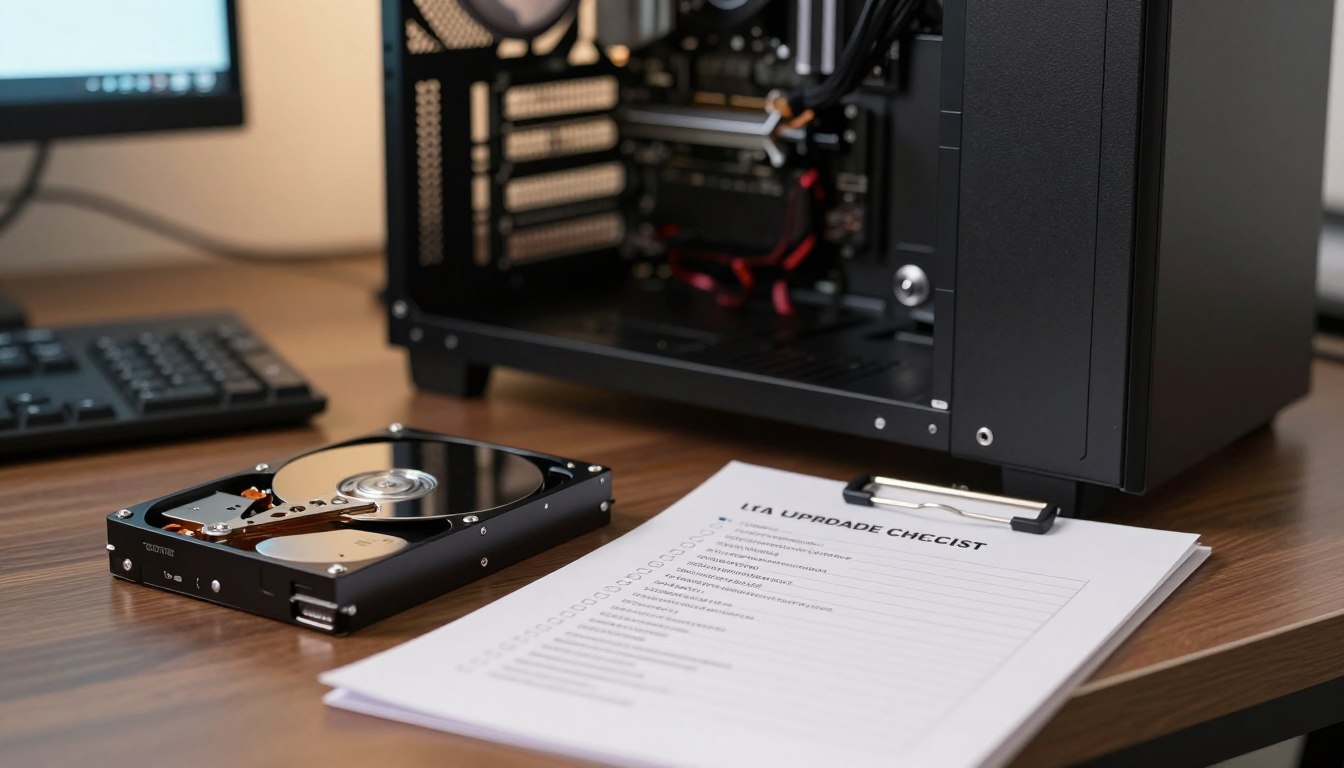
If you replace the boot drive, plan to clone the old drive or reinstall the OS. Adding a drive avoids that step when the PC has a spare compatible connection. A laptop may have fewer internal options than a desktop, so check its exact specifications before choosing an upgrade.
One terabyte of external storage for a PC is useful for backups and files you do not access often. It is less convenient for games you play regularly, so an internal SSD is the better place for frequently played titles. An external drive can still help keep recordings and other files off your main drive.
PCIe 3.0, PCIe 4.0, and PCIe 5.0 drives are backward compatible, but each runs at the generation supported by the connected system.
Before ordering an internal upgrade, confirm the exact motherboard or laptop model’s drive specifications.
Conclusion
For a rotating game library, 1TB is a sensible starting point; for less storage management, choose 2TB if it fits your budget. The right drive should leave enough usable capacity for the games and everyday files you want installed at the same time.
Check the current install sizes in your game library, then add the apps, recordings, and personal files you plan to keep. That total gives you a practical basis for choosing a drive without guessing from the capacity printed on its label.
Before buying, total the space used by the games and files you want on the PC at the same time.
FAQ
How much storage is best for gaming?
2TB is a practical sweet spot for many gamers, while 1TB works for a smaller rotating library. The bigger drive gives you more flexibility to keep several large games installed together. If you are comfortable removing titles you have finished and downloading them again later, 1TB can be enough. Include apps and personal files when estimating your needs.
Is 1TB SSD good for a gaming PC?
Yes, a 1TB SSD is good for a gaming PC if you keep a manageable number of large games installed and remove titles you no longer play. The drive also needs room for the OS, apps, saves, and personal files. If you prefer having a broad library ready without uninstalling games, more capacity can make daily use easier.
Do I need 512GB or 1TB SSD?
1TB gives you more room for games and files, while 512GB can feel tight because about 476GB may appear after formatting. That smaller drive can still work if you install only a few games and keep other files elsewhere. For a gaming PC that will hold several large titles, 1TB gives you more breathing room.
Which is better for me, a 256GB SSD or a 512GB SSD?
A 512GB SSD provides more usable room, but both sizes are limited for a PC with large modern games. About 476GB may appear from a 512GB drive after formatting, while a 256GB drive leaves less space for the OS, apps, and games. Choose 512GB if those are your only options, and expect to manage installs closely.
Is 512 GB enough for 4 years?
512GB can last four years if you play a small rotation and uninstall games when you finish them. A growing library, larger game installs, and recordings can make the drive feel cramped sooner. Keep track of what is using space, including captures and downloads, rather than counting only the games you own.
Is 256GB enough for Windows 11?
Yes, Windows 11 can install on a 256GB drive, since its minimum available-space requirement is 64GB. That minimum is not a prediction of the space a real installation, updates, apps, and games will occupy. For a gaming PC, 256GB is a tight choice because the OS and everyday files leave limited room for large titles.
If you want to dig further into digital pulse check, read our Digital Pulse Check guide.
If you want to dig further into how to quickly check what hardware your compu, read our How to Quickly Check What Hardware Your Compu guide.
If you want to dig further into step-by-step guide, read our Step-by-Step Guide guide.


 By
By



 By
By